Heat-wave playbook for HVAC
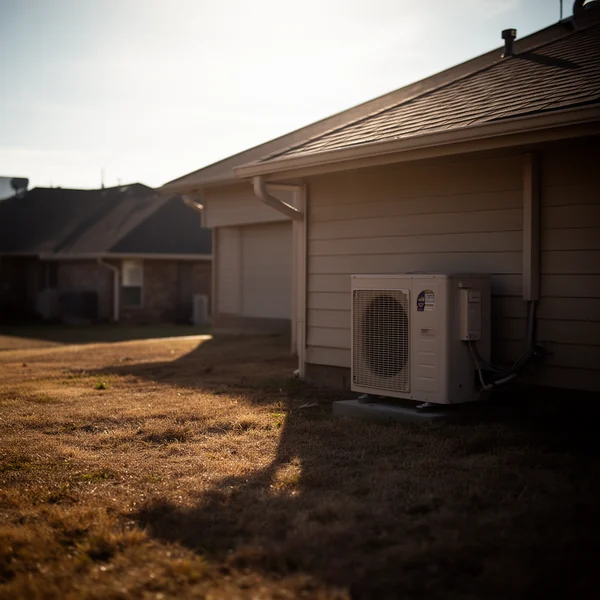
When a heat advisory is forecast, the phone changes before the thermometer does: no-cooling calls stack up, some from homes with an infant or an elderly person inside. DispatchLine can take those calls, but only inside the hours, windows, rules and minutes you set. This playbook covers what to change the day before, what to watch during the week and what to put back. For the staffing side of an HVAC heat wave call surge, see HVAC call overflow.
Three limits to plan around
- Nothing is held back for emergencies. An emergency books the earliest window still open, and whoever calls first gets it.
- The phone books one job per window, however many trucks you run. When no window is open, the agent takes the details and promises a callback. Arrival windows and hours has the detail.
- Trial minutes are finite. The free trial pauses at 150 minutes. Paid plans have no minute allowance and no per-minute charge, and a busy week does not pause them.
The day before, in this order
1. Check your minutes
The portal shows the minutes answered this cycle. As an illustration: 40 calls a day at 2 to 3 minutes each is 80 to 120 minutes a day (40 x 2 and 40 x 3), or 560 to 840 over seven days. On a paid plan that week costs nothing extra, because there is no per-minute charge. On the trial, 150 minutes at that pace lasts under two days (150 / 80 is less than 2), and usage emails go out at 80% and 100% of them. Plans and minutes has the detail.
2. Set the forward
If you forward only missed calls, set all three conditional slots, not just no answer: the busy slot catches the second caller while you are already on the phone. If nobody in the office will answer this week, switch to always-forward, then switch back. Test from a different phone. The codes are in the forwarding guide.
3. Rewrite the greeting
Under Agent → Identity: “Thanks for calling {company}, this is {agent}. We’re getting a lot of calls with the heat, and I can get you on the schedule now.” Keep it short, since the recording notice is added at the end when recording is on, and leave out times.
4. Ask about vulnerable people early
Under Agent → Triage questions, add “Is anyone in the home elderly, an infant, or on medical equipment?” straight after name and address. Those two stay first: the tech needs a name at the door, and the address drives the service-area check. An infant, an elderly person or someone on medical equipment in a home with no cooling is always an emergency, keyword or not, and asking early makes sure the agent hears it.
5. Decide whether every no-cooling call is an emergency
The HVAC defaults under Agent → Emergencies include “no cooling” and “no AC”. In a heat wave nearly every caller says one, so nearly every call runs your emergency action and sends an alert. Keep them if your on-call tech can act on that many alerts. Otherwise remove them for the week: ordinary no-cooling calls then book as routine, and calls with a vulnerable person still run as emergencies, because that rule does not need a keyword.
Then check the action. Book and alert, the default, tells the caller a technician will call back within 15 minutes, and take details, or a live transfer that does not connect, makes the same promise in your name. If nobody can commit to that on a given night, live transfer to the on-call phone is the safer setting. Emergency rules covers all three actions.
6. Open the evening, if a tech will run it
Under Agent → Hours, push the close time later. Windows run from open to close, so this puts evening windows on the board. With two-hour windows, 8 AM to 4 PM is four windows (8 hours / 2) and 8 AM to 8 PM is six (12 hours / 2): two more phone bookings a day. Only open windows somebody will run, and since there is no drive-time buffer, keep the length under Agent → Booking → Arrival window long enough for the drive.
7. Update the business facts
Add what heat-wave callers ask: your evening or weekend rate, the systems and brands you service, and your maintenance plan if you sell one, which the agent can mention once on a routine call. Do not write “priority scheduling” or “same-day service” into those facts: the phone books windows first come, first served and cannot move a plan member ahead.
8. Point alerts at the on-call tech
Under Team, turn emergency alerts on for whoever is on call. Alerts go by email, and by text too if the member has opted in to text alerts, so confirm the email reaches the phone they carry at night.
9. Make two test calls
Press Agent → Test call twice: an ordinary no-cooling call, then one with an elderly parent in the house. Listen for the new greeting and question order, then check the second call was flagged and the alert email arrived.
During the week
- Read emergencies first. The call log flags them, and the two-line summaries show which calls mentioned an elderly resident or a newborn. Dispatch in that order.
- Work the lead list twice a day. Callers who did not book, including those who found no open window, are there with one-tap callback.
- On the trial, act on the 80% usage email, not the 100% one. A paid plan has no minute allowance, so it sends no usage emails.
- Fix wrong outcome tags so the week’s report is right, and turn each “I’ll have the office confirm that” in a transcript into a business fact.
After the heat breaks
- Put back the greeting, your hours and your window length.
- Put “no cooling” and “no AC” back under Agent → Emergencies if you removed them, or ordinary no-cooling calls keep booking as routine.
- Keep the vulnerable-person question all summer if you like; it costs one question.
- Reset alerts, the emergency action and the forward, and test from another phone.
- If you moved up a plan, a downgrade under Billing takes effect at the next cycle.
Then read the week: the Monday email has calls answered and jobs booked, and the call log shows when calls came in and how many ended on the lead list without a window, which tells you how many hours to open next time. The HVAC page covers DispatchLine for an HVAC shop.
New field guides by email
Guides for home-service businesses on answering calls, call triage and after-hours coverage: the title, a short summary and a link for up to six of the newest guides on this site. At most one email every 30 days.